
Working draft updated for U/TOOLS 1.0.2 on 3 November 2026. The supplied application screenshots show version 1.0.0 and have not been replaced with 1.0.2 screenshots. Image assets and website publication still require editorial review. This file is not a published manual.
Application version covered: 1.0.2 (Microsoft Store package 1.0.2.0)
Manuscript updated: 3 November 2026
Introduction
U/TOOLS combines two Windows image workflows:
- Convert: convert selected files from File Explorer using saved output, quality and resize settings.
- Reference: display floating reference images while working in other applications. Move, crop the viewing window, zoom, rotate, flip, change opacity or keep images above your workspace.
Conversion formats and basic reference controls are included in Free. Pro adds larger conversion batches, more simultaneous references, Reference Boards and session restoration. The optional trial gives access to Pro features for 14 days.
System requirements and installation
U/TOOLS 1.0 targets Windows 11 x64, starting with Windows build 22000. This package is not an ARM64-native build. Image size, image complexity and the number of reference windows affect memory and disk requirements; Pro does not remove safety or resource limits.
The Store package contains the application runtimes and image libraries. A normal Store installation does not require a separate .NET installation, development tools, Developer Mode or PowerShell registration.
Install from Microsoft Store
- When U/TOOLS is available in your market, open its Microsoft Store listing.
- Install the Free base application.
- Launch U/Tools from the Start menu.
- Find its icon in the Windows notification area. Windows may place it under the hidden-icons arrow.
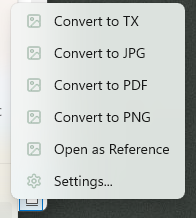
- Right-click a supported image in File Explorer and look for U/TOOLS. The commands depend on the selected file types and your configured quick actions.
The Store manages the program files. You do not need to open the WindowsApps installation directory or choose between the bundled executables. Settings and user data are stored separately.
Use Microsoft Store to check for updates. To uninstall, use Windows Settings → Apps → Installed apps → U/Tools → Uninstall. Back up Boards, original images and anything else you want to retain before uninstalling. Do not depend on uninstalling to remove every locally created output or reset a trial.
Start, Settings and Quit
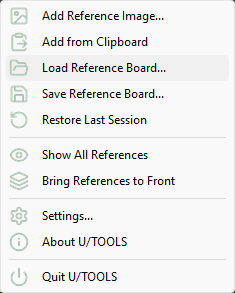
U/TOOLS can run in the notification area without a large main window. Open Settings… from its notification-area menu or the Explorer U/TOOLS submenu. Closing Settings does not quit the reference application.
Use Quit U/TOOLS in the notification-area menu to exit U/TOOLS and close its reference windows and Settings. Save a Reference Board first if you want a named, reusable layout.
The notification-area icon shows that the reference application is running. The Explorer right-click menu belongs to the installation and remains available after Quit, like commands from an installed ZIP utility. Choosing a conversion command starts the required worker; Open as Reference starts the reference application again. A remaining right-click menu does not mean that U/TOOLS has started automatically.
Quick start
Convert an image
- If needed, open Settings… → Convert and choose your output, quality and resize settings.
- In File Explorer, select an image and open its context menu.
- Open U/TOOLS and choose a command such as Convert to PNG or Convert to JPG.
- The selected command starts conversion using the saved settings. It does not normally open a format-selection or settings dialog first.
- Check the new file. By default it is saved beside the original.
A small conversion may finish before a progress window is useful. Failures produce a conversion report with details and a local log path. The absence of a permanent success dialog is not a failure: check the output folder.
Open a reference image
- Right-click a supported image in Explorer and choose U/TOOLS → Open as Reference.
- Alternatively, choose Add Reference Image… from the U/TOOLS notification-area menu and select an image.
- Drag the image window with the left mouse button to position it.
- Scroll to zoom; use the middle mouse button to pan inside the window.
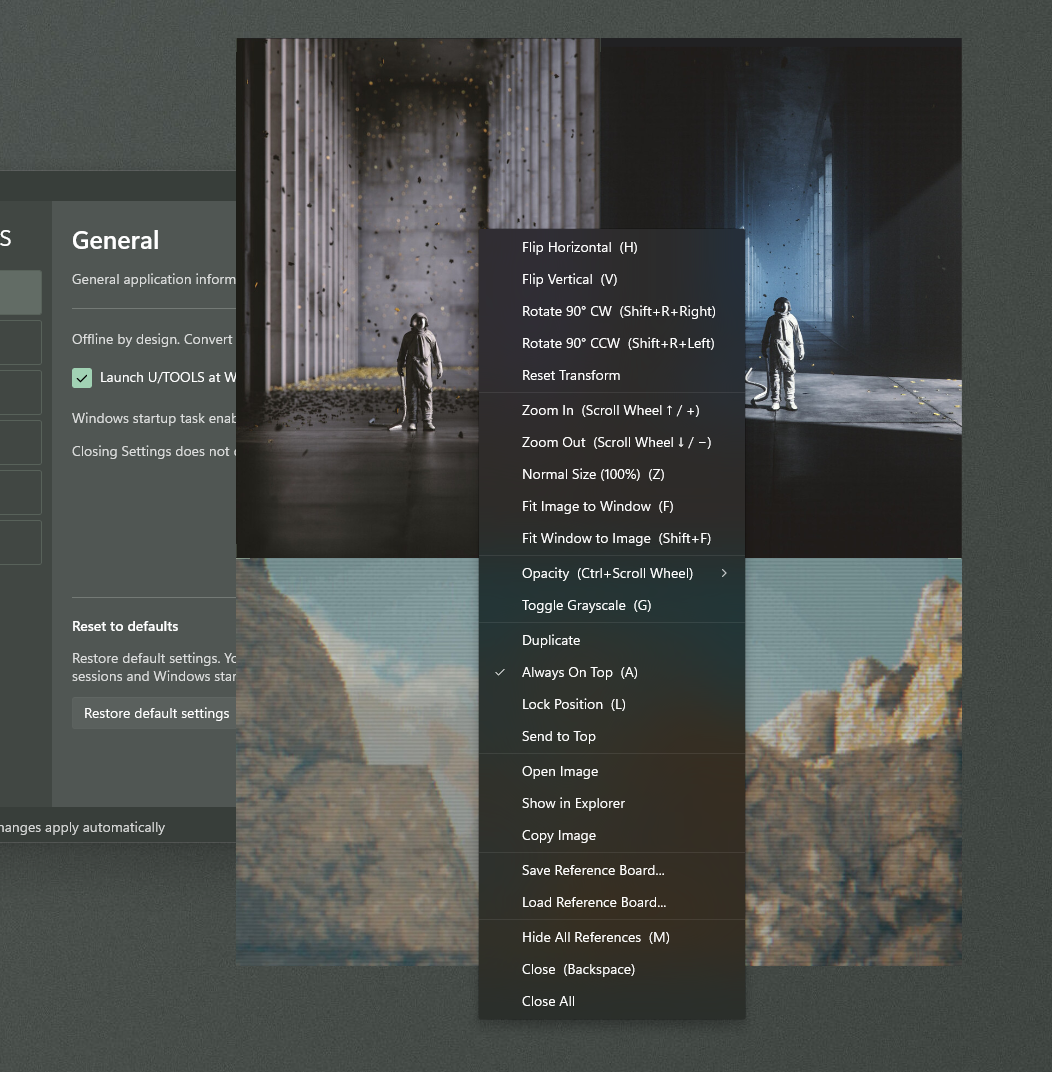
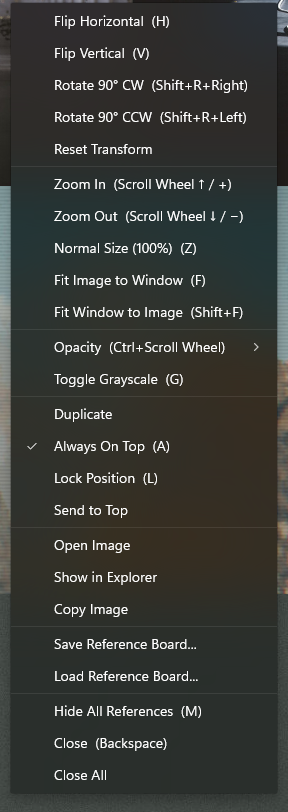
- Right-click the reference for view controls, opacity, Boards and closing commands.
New references are normally Always On Top. Press A or use the right-click menu to change that setting for the active reference.
Convert
Available formats and conversion paths
Read support and write support are different. The application checks installed encoders and offers available output commands. An input format being readable does not mean it is available as an output, or that it can be converted directly to every other format.
The installed build’s available-command list is the practical reference for output availability. Unavailable encoders are hidden; the selection in Explorer can further restrict which commands appear. All available conversion formats are included in both Free and Pro.
| Format family | Behaviour and important restrictions |
|---|---|
| PNG, JPEG, WebP, TIFF, BMP and TGA | General raster conversion. JPEG cannot retain transparency. Multi-page or animated input is not silently flattened to its first frame. |
| Photoshop PSD / PSB | Imports use the saved merged image. Exports are flattened raster documents. Editable layers, text and smart objects are not recreated. |
| OpenEXR | Useful for floating-point image data. Channel layout and precision can restrict conversion to ordinary image formats. |
| Radiance HDR / RGBE | Uses RGBE precision. HDR output removes alpha and clips negative values; use EXR where those properties matter. |
| TX | Compatible tiled TIFF-based 2D textures. Reading or exporting uses the highest-resolution mip, level 0. Not every file named .tx uses a supported container. |
| Windows PDF rendering converts selected pages into raster images. PDF output is raster-based; it is not a document editor or OCR workflow. | |
| ICO | Imports use the largest stored rendition. Output is a single square icon up to 256 × 256, with transparent padding when needed. |
| GIF | Single-image use; animation authoring is not provided. |
| AVIF, JPEG 2000, JPEG XL, PCX and portable image formats such as PNM/PPM/PAM | Available commands depend on the verified encoder inventory of the installed build. |
| HEIC/HEIF, DICOM, MPO, JPEG stereo and other less common inputs | Readability does not guarantee write support. Do not infer an export command from a readable extension. |
| EPS and other PostScript-based inputs, headerless Photoshop RAW, Pixar PXR and Photoshop DCS | Do not assume input support. EPS, where offered as output, is raster export. |
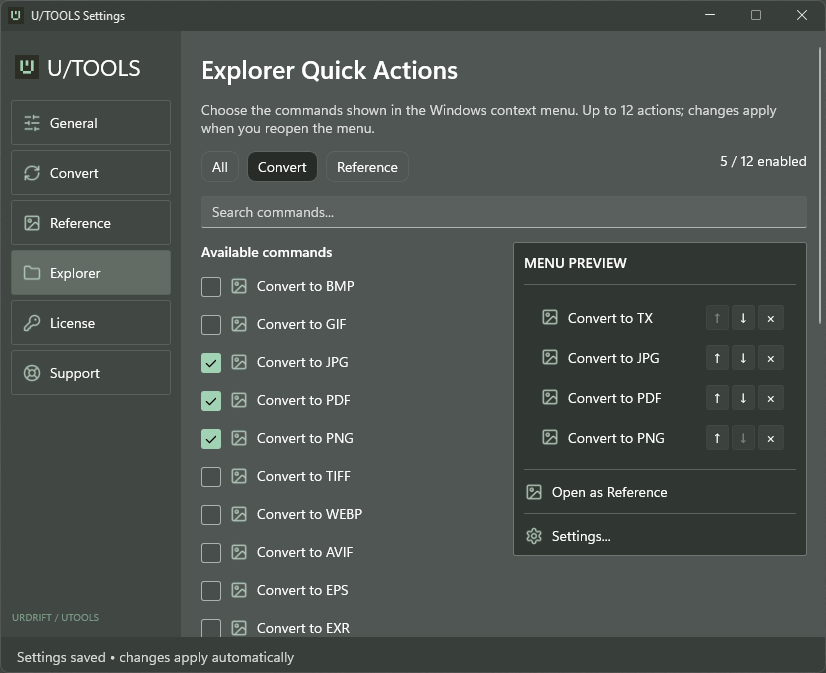
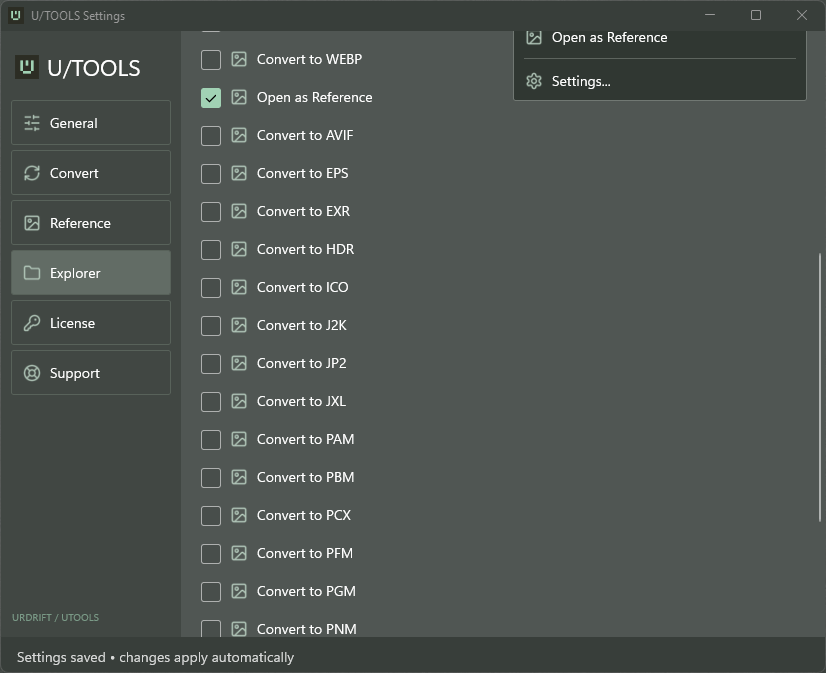
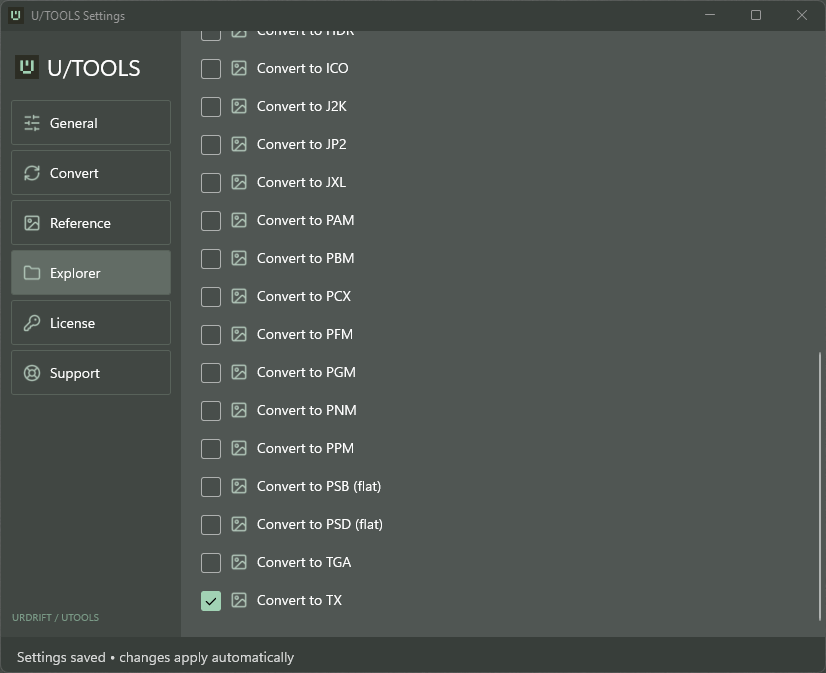
The supplied Windows 1.0 screenshots show the following available output commands (this is not a read-support matrix or a claim that all input/output pairs work):
| Group | Visible output commands |
|---|---|
| Common raster | BMP, GIF, JPG, PNG, TIFF, WEBP, TGA |
| Additional raster | AVIF, ICO, J2K, JP2, JXL, PCX |
| Portable image formats | PAM, PBM, PFM, PGM, PNM, PPM |
| Photoshop raster | PSB (flat), PSD (flat) |
| HDR / texture | EXR, HDR, TX |
| Raster document output | PDF, EPS |
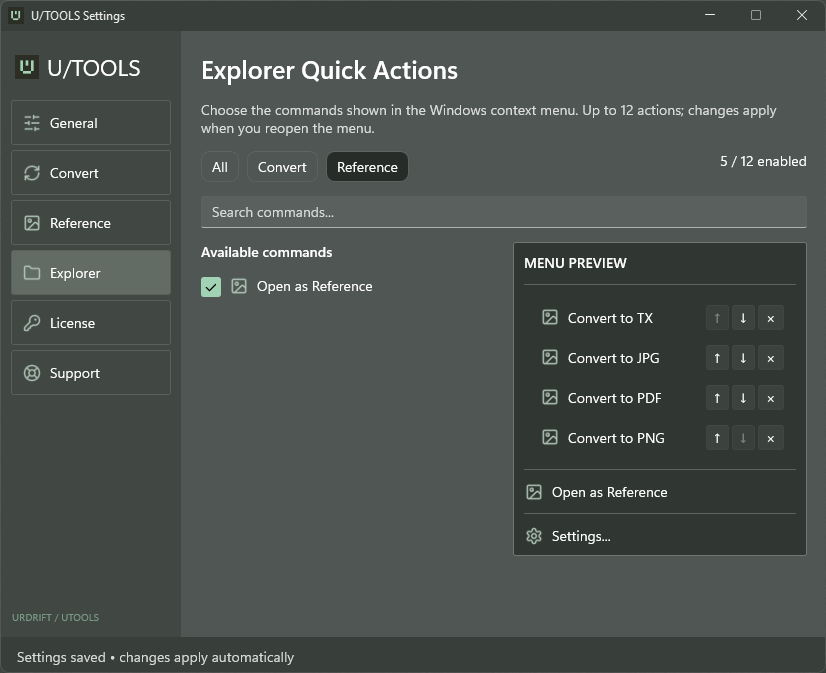
These 26 available outputs are distinct from the selected quick actions: the screenshot has five enabled actions, while the configured menu can contain up to 12. A different selection or installed encoder inventory may hide commands. The list does not establish HEIC/HEIF or DICOM writing.
For multi-page raster or animated sources, the normal Explorer workflow does not provide an instruction to discard all but the first frame. Convert or extract the intended image in a suitable application first. PDF has its own explicit page-selection workflow below.
Explorer quick actions
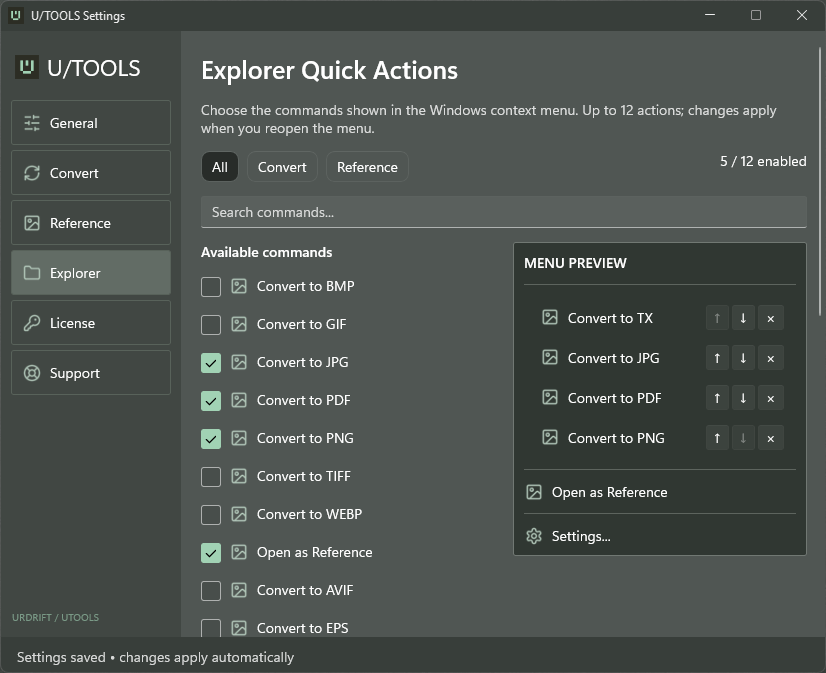
Open Settings → Explorer. The page contains All, Convert and Reference filters, a command search, Available commands, and a MENU PREVIEW.
- Enable the commands you want in the menu.
- Use ↑ and ↓ beside an enabled conversion entry in the preview to move it up or down. The preview also supports dragging conversion entries to reorder them.
- Use × beside an entry to remove it, or clear its checkbox under Available commands.
- Up to 12 quick actions may be selected. The fixed Settings command is separate.
- Changes save automatically. Close an already open Explorer menu and open it again to see the updated selection.
- Open as Reference follows the conversion group. Settings… remains available at the end of the submenu.
The preview shows configured commands, not a guarantee that every command will appear for every file selection. Actual Explorer visibility also checks the selected files.
For a mixed selection, a conversion command is shown only when every selected item is eligible for that target. In particular, TX and HDR are not offered for PDF, PSD/PSB or other inputs outside the direct texture pipeline. Select only compatible inputs to use those commands. Unknown file types and folders cannot enable a conversion command.
File extensions allow the menu to make a quick eligibility check; conversion still validates the file contents. A damaged file or unsupported channel layout may therefore fail even when its command is visible.
Batch conversion and cancellation
Select several files and choose one conversion command. Each file is processed separately; the operation is not a single combined output document.
Free permits up to five input files per operation. If you select more, the app offers a file-selection workflow. Explicitly choose between one and five files and use Convert selected files, or choose Cancel. No arbitrary first five files are selected for you.
Pro removes the Free batch count limit, but technical limits remain; an Explorer request accepts at most 10,000 paths. This is a request ceiling, not a recommendation to process a batch that large.
For longer operations, the progress window shows completed files and allows cancellation. Already completed outputs remain. Cancellation stops work that has not finished; it is not an undo command and does not remove the source files. A partially successful batch can keep successful outputs and report the files that failed. Likewise, a multi-page PDF can have completed page outputs before a later page fails.
Output location, names and existing files
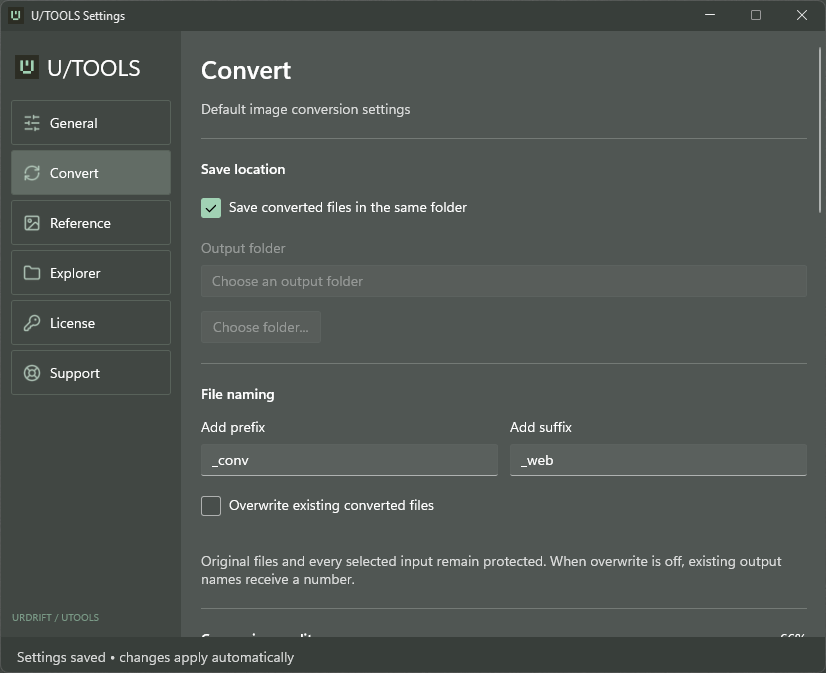
Under Settings → Convert:
- Save converted files in the same folder is on by default.
- To save elsewhere, turn that option off and choose an Output folder using Choose folder….
- Add prefix and Add suffix add text to the output filename. Each accepts up to 64 characters, excluding Windows filename control characters.
- Overwrite existing converted files is off by default.
By default, an existing name produces an additional name such as image (1).png. Enabling overwrite allows replacement of an existing converted destination. The conversion engine still protects the current operation’s source paths; it does not use overwrite to replace a selected source image with its own output. Keep backups of important converted outputs before enabling overwrite.
Resize and quality
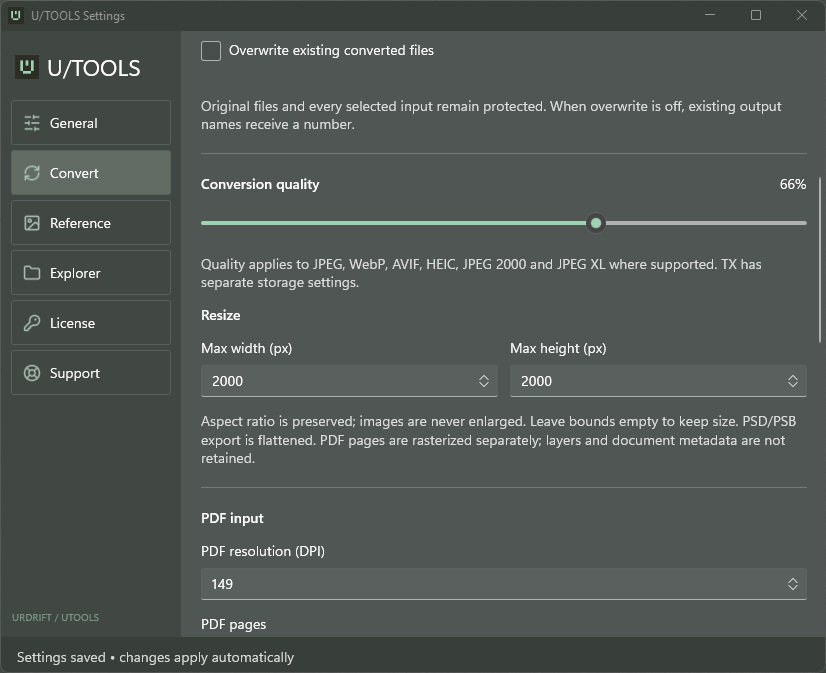
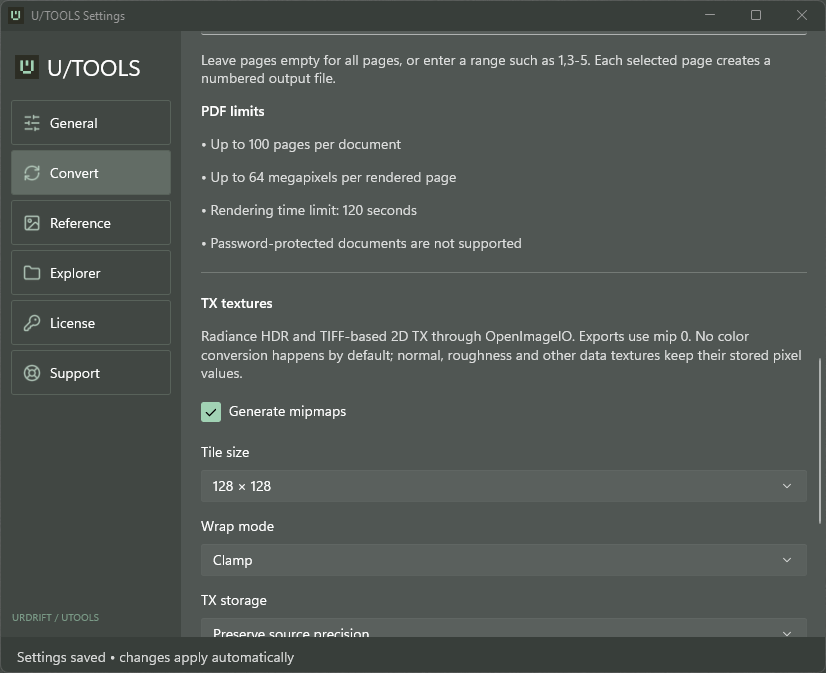
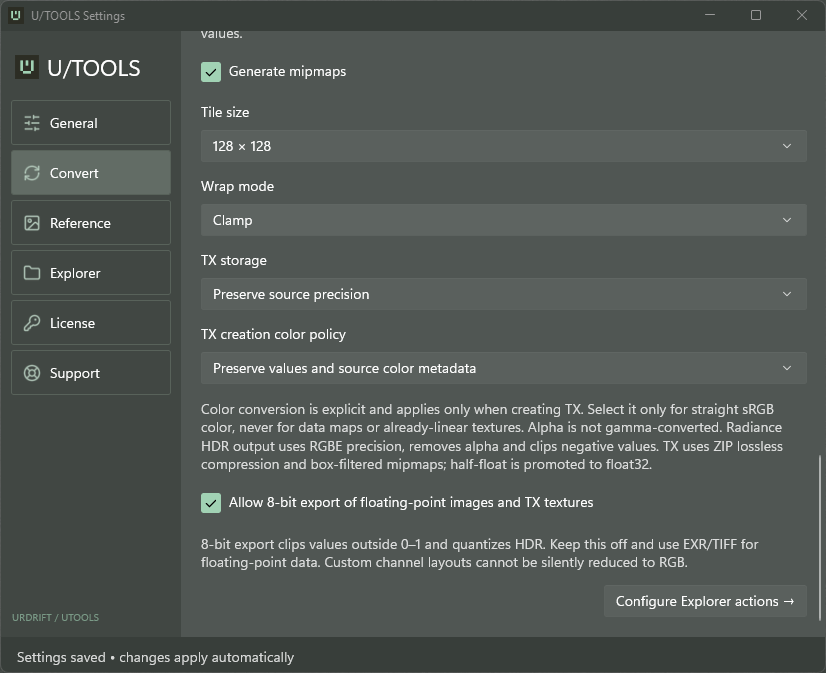
The screenshots show customised settings, not factory defaults: prefix _conv, suffix _web, quality 66%, resize bounds 2000 × 2000, PDF 149 DPI, tile size 128 × 128, and 8-bit export enabled. These values illustrate the controls. They are not required settings or the defaults listed below. For example, with that prefix/suffix, image.png converted to JPEG can become _convimage_web.jpg.
- Quality: 1–100; default 90. Its effect depends on the output encoder. It is relevant to formats such as JPEG and WebP; a higher setting is not a universal quality improvement for every format.
- Max width (px) and Max height (px): optional, 1–32,768. Leave a field empty to leave that bound unspecified.
- Resizing fits inside the requested bounds, preserves aspect ratio and does not upscale smaller images. The configured maximum does not override image-safety limits.
Changes save automatically. If a value is invalid or cannot be saved, the page shows an error. Do not assume an invalid entry has replaced the last valid setting.
PDF input
Under Settings → Convert, set:
- PDF resolution (DPI): default 144, supported range 36–600.
- PDF pages: leave empty for all supported pages, or enter a selection such as
1,3-5.
The workflow supports page numbers 1–100, up to 100 pages per document, a maximum of 64 megapixels per rendered page, and a 120-second rendering time limit. Password-protected documents are not supported.
Page outputs use names such as Manual_page-0001.png, with collision handling as described above. Pages are rasterized on a white page. Interactive content, editable layers, text semantics and document metadata are not transferred as editable document features.
To make TX from a PDF, first convert the intended pages to PNG or TIFF, then convert the resulting raster images to TX. For PSD/PSB, use the saved merged raster through the same two-step workflow.
Transparency, metadata and colour
The normal conversion path honours image orientation. JPEG conversion removes alpha against a white background in the Explorer workflow. Choose an alpha-capable format such as PNG when transparency must be retained.
Metadata is preserved where the workflow and destination support it; this is not a promise to retain every field or profile in every conversion. PDF rasterization does not carry document metadata into editable image features. Ordinary CMYK-to-other-format conversion can require conversion to sRGB. PSD/PSB output is flattened.
Some options exposed by the command-line engine, such as choosing a custom JPEG background or explicitly stripping metadata, are not controls in the standard Settings workflow. Do not look for those as GUI buttons.
HDR and TX settings
Texture controls are part of Settings → Convert, not a separate Texture page.
| Setting | Choices / default |
|---|---|
| Generate mipmaps | On by default. |
| Tile size | 32, 64 or 128; default 64. |
| Wrap mode | Clamp, Periodic, Mirror or Black; default Clamp. |
| TX storage | Preserve source precision, or Float32 (HDR); preserve by default. |
| TX creation color policy | Preserve values and source colour metadata; Data: preserve values and remove colour profiles; or explicit straight sRGB → linear sRGB. Preserve is the default. |
| Allow 8-bit export of floating-point images and TX textures | Off by default. |
Direct TX/HDR input families are PNG, JPEG, WebP, TIFF, EXR, HDR, compatible TX, BMP and TGA. Input aliases are recognised where supported. This list does not mean arbitrary channel arrangements or malformed files can be accepted.
No gamma conversion is applied by default. Use the Data mode for values that should not be treated as display colour, such as roughness or normal maps. Use sRGB-to-linear conversion only for straight sRGB colour, not data maps or images that are already linear. These colour choices apply when creating TX; alpha is not gamma-converted.
TX output uses lossless ZIP compression and box-filtered mipmaps. Half-float inputs are promoted to float32 for TIFF-based TX compatibility. Exporting an existing TX reads mip 0; it does not recover an earlier pre-texture source.
Converting floating-point data to an ordinary 8-bit output can clip values outside 0–1 and reduce precision. Where approval is required, the app asks before retrying the affected files. A one-operation approval does not permanently change the preference; Always allow 8-bit export explicitly does. Use EXR or floating-point TIFF to preserve HDR data instead. Incompatible custom channels are not silently reduced to RGB.
Saved conversion presets
There is no user-facing saved-conversion-preset management workflow in U/TOOLS 1.0. The settings described above are saved defaults, not a collection of named presets. Saved conversion presets are not advertised as a Pro benefit in this manual.
Reference
Supported images and opening methods
Floating references accept PNG, JPEG, WebP, TIFF, BMP and TGA, using single-image inputs. Reference support is narrower than Convert support. For PDF, PSD, EXR, HDR or TX, first create a supported raster image with Convert.
Open images through Explorer’s Open as Reference, the notification-area Add Reference Image…, or Add from Clipboard. Clipboard files reference their originals. Clipboard bitmap content is explicitly saved as a local PNG so it remains available to Boards and sessions; it is not continuously monitored or uploaded. Imported clipboard images are stored under %LOCALAPPDATA%\Packages\Urdrift.UTools_m6965c7ypmb5y\LocalState\URDRIFT\UTools\Clipboard. Do not delete a cached image if a Board or session still needs it.
Dropping one supported image onto an existing reference replaces that window’s image. It preserves the window position, size, opacity, topmost and background state, resets the image view and fits the replacement. Multiple dropped files, folders or remote URLs are not an image-replacement workflow. A failed replacement does not intentionally discard the previous image.
Moving, resizing and viewing
A reference normally shows the image without a title bar or toolbar. Right-click to open its commands.
| Input | Result |
|---|---|
| Left-button drag | Move the reference window. |
| Drag a corner | Resize the viewing window/canvas without scaling the image. |
| Shift + corner drag | Resize the canvas and scale the image with it, preserving the canvas aspect ratio. |
| Middle-button drag | Pan the image inside its clipped canvas. |
| Mouse wheel | Zoom the image around the pointer. |
| Ctrl + mouse wheel | Adjust reference-window opacity in 5% steps, between 25% and 100%. |
| R + left-button drag | Rotate the image smoothly. Hold Shift while rotating to snap to 90-degree steps. |
| Drag near another reference | Snap eligible window edges/alignment when close enough. |
Lock Position (L) prevents accidental window movement; it does not lock every image-view control. The opacity menu offers 25%, 50%, 75% and 100%. Opacity affects the reference window; it is not an exported alpha change and does not make the window click-through.
Zoom is bounded to 0.5–800%. Normal Size (100%) maps source-image pixels to physical display pixels, but displayed previews are limited to 2048 pixels per side. It is not a promise of full-resolution pixel inspection for a large source.
Fit Image to Window changes the image view to fit the existing canvas. Fit Window to Image changes the canvas size to the displayed image within the supported screen/window bounds. Reset Transform returns the view to its normal transform; it does not undo edits in an external image editor.
Flip, rotate, grayscale and opacity operations change the reference view, not the original file. Copy Image places a rendered copy of the current reference image, including supported rotation/flips/grayscale, on the clipboard; it is not an overwrite of the source or a promise of full-resolution, untransformed source pixels.
Window management
- Duplicate opens another reference with the current view state. It counts towards the reference limit.
- Always On Top (A) changes the active window’s persistent topmost state. Send to Top raises it once. Version 1.0.2 improves reliability when other applications start or become active. Turning Always On Top off allows normal window overlap. Keeping references above another application should not take keyboard focus from that application; hidden references remain hidden.
- Open Image opens the original in its associated application. Show in Explorer locates the source file.
- Hide All References (M) hides references without closing them. Restore them with the notification-area Show All References or Bring References to Front command.
- Close (Backspace) closes one reference. Close All closes all references. Save a Board before closing a layout you want to retain.
Reference windows are managed through the notification icon and do not appear as ordinary taskbar/Alt+Tab application windows. If a reference is hidden behind another window, use the notification-area controls rather than assuming the file has been closed.
Image and resource limits
Direct reference input is limited to 64 MiB, 16 megapixels, and 16,384 pixels per side. Overall reference-memory limits also apply, including in Pro.
If dimensions are too large for direct reference display, Create reduced reference? can offer to save a smaller JPEG beside the original, with a name such as image_uref.jpg. It is at most 4000 pixels per side / 16 megapixels. The original is preserved, existing files are not replaced, and JPEG transparency becomes white. The opened reference and any subsequently saved Board refer to that reduced copy. A file-size or decoding failure does not guarantee this reduction option will be available.
Reference Boards — Pro
Boards are implemented in 1.0 and are available with purchased Pro or an active Pro trial.
- Open and arrange the references.
- Choose Save Reference Board… from the notification-area menu or a reference’s context menu.
- Choose a location and filename. New Boards use .uboard. An existing file is replaced only through the explicit Save workflow.
- Choose Load Reference Board… to open a saved arrangement. The app also recognises .utboard for compatibility.
A Board saves links to source images and view/window state, including position, size, zoom/pan, rotation, flips, grayscale, opacity, topmost, background state and position lock. Images are linked, not embedded. Keep the sources in place; a Board alone is not an image backup or portable collection.
Loading a Board adds its references to the current layout. Missing or unsupported images are reported rather than silently treated as successfully loaded. Restore the image to its saved location or open the replacement and save a new Board; no automatic relink workflow is promised.
Review local paths before sharing a Board. Layouts are fitted/clamped to available display work areas where appropriate, so a different monitor arrangement can change placement.
Last-session restoration — Pro
Session restoration is implemented separately from named Boards. While Pro access is active, the app periodically saves the current session and attempts a final save on normal Quit. It can offer Restore Last Session at startup when no references are open. The notification-area menu also contains Restore Last Session.
Close current references before restoring a session. Save a Board first if you want to keep their current layout. Missing source files are reported while available references are retained. Periodic saving is not a guarantee to recover every change after a crash or forced termination.
Free cannot save/load Pro Boards or restore a Pro session. Losing Pro access does not delete saved Boards or close the reference windows already open.
Settings
Open Settings from the notification-area menu or Explorer. The 1.0 navigation is:
| Section | Purpose |
|---|---|
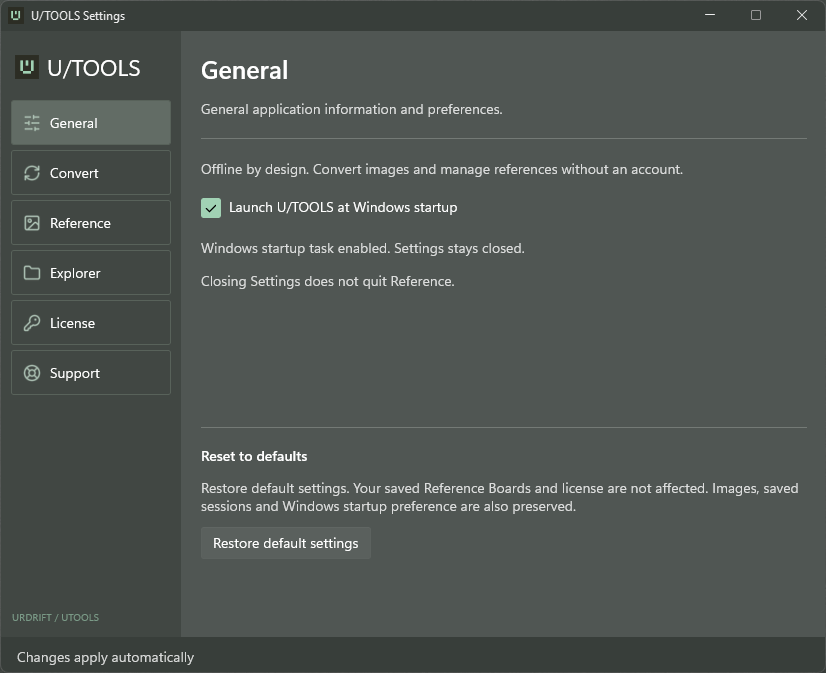
| General | Optional Windows startup and Restore default settings. |
| Convert | Output location/names, overwrite, quality, resize, PDF and HDR/TX controls. |
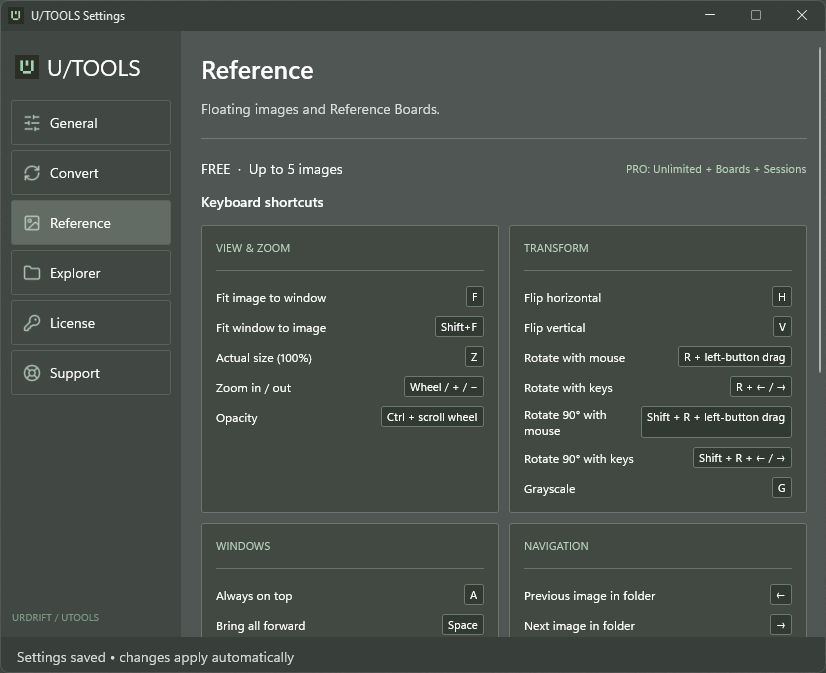
| Reference | Reference limits and keyboard/mouse help. |
| Explorer | Select and order quick actions; preview the configured menu. |
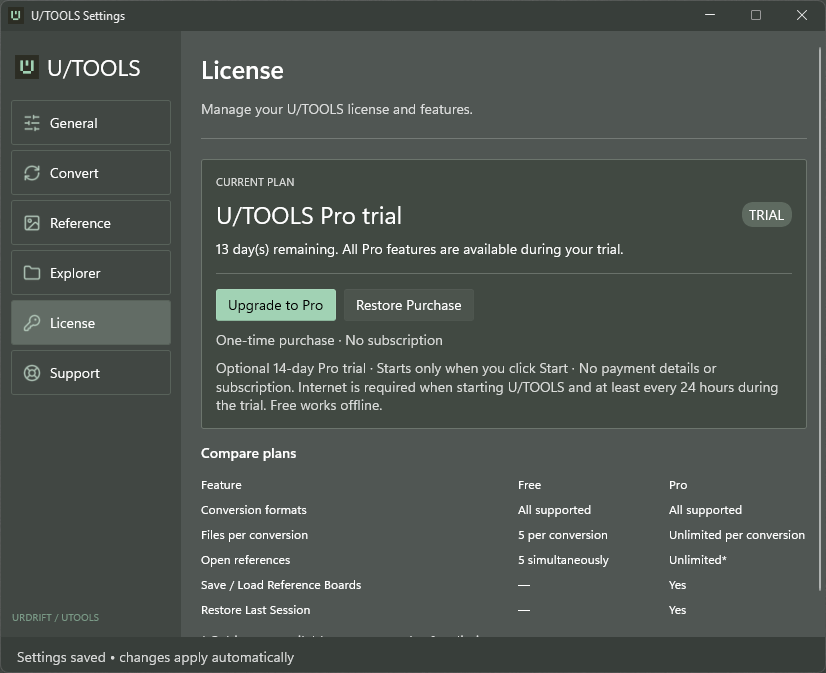
| License | Current plan, manual trial, Pro upgrade and purchase restoration. |
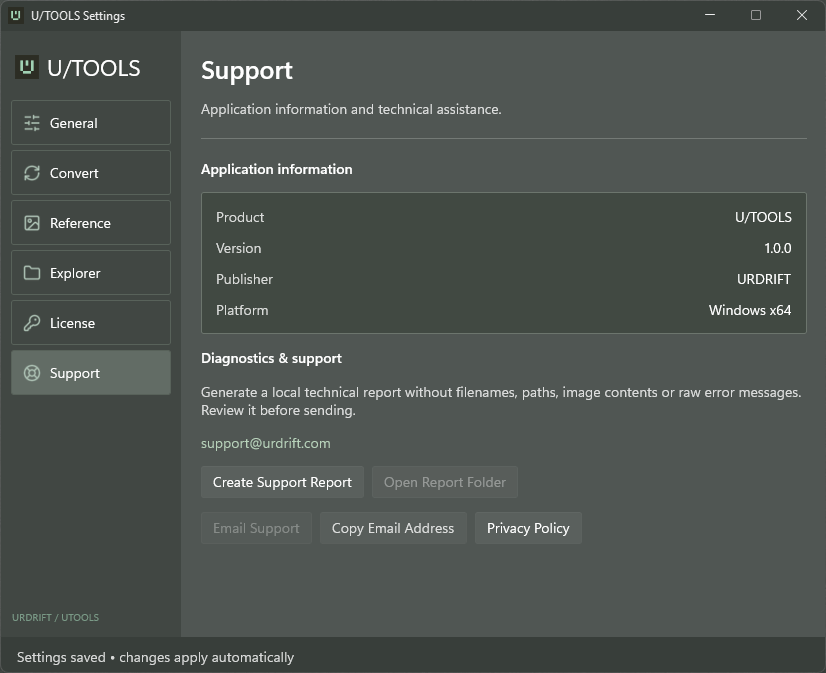
| Support | Version, privacy link and locally created support reports. |
Settings changes apply automatically. An error means the attempted setting may not have been saved; correct it before starting another conversion. The preference footer indicates successful saves.
Under General, Launch U/TOOLS at Windows startup is optional. When enabled and allowed by Windows, it starts the reference application in the notification area with Settings closed. When disabled, U/TOOLS should remain closed after Windows restarts, including if the app was left running beforehand. Version 1.0.2 adds handling for Windows reopening a running application separately from the startup task. Windows can disable or restrict startup apps independently; use the state reported by the application and Windows Startup settings. Closing Settings is not Quit. The installed Explorer menu remains available in either case.
Restore default settings resets conversion/menu preferences. It does not reset your license or trial, delete Boards/images/saved sessions, or reset the Windows startup preference.
Free, Pro and trial
| Feature | Free | Pro / active Pro trial |
|---|---|---|
| Available conversion formats | Included | Included |
| Files per conversion operation | Up to 5 input files | No edition count limit; technical limits remain |
| Simultaneous references | Up to 5 | No edition count limit; memory/safety limits remain |
| Basic reference viewing and controls | Included | Included |
| Save/load Reference Boards | Not included | Included |
| Last-session restoration | Not included | Included |
Pro is a one-time purchase, not a subscription. The intended Swedish price is 199 SEK; the Microsoft Store checkout is authoritative for current pricing, currency, taxes and availability. No U/TOOLS account or payment details are required to use Free.
Optional 14-day Pro trial
- Open Settings → License.
- Choose Start 14-Day Pro Trial when offered.
- Connect to the internet and wait for confirmation that the trial is active.
- Check the current plan and remaining time on the License page.
The trial starts only after your explicit activation. Installing the app, opening Settings or using Free does not automatically start it. It grants the Pro features listed above for a fixed 14-day period, measured using the trial service’s time. There is no automatic subscription or purchase when the trial ends.
Trial activation and verification use an online service. A newly started app process must verify online. An already verified process can retain an offline lease of at most 24 hours, never beyond the original trial end; an earlier recheck can be required. Free continues to work offline when a trial cannot be verified.
The trial identity is tied to a persistent key for the current Windows user. Ordinary app uninstall/reinstall on that same Windows account does not restart the trial. This is not a promise that trial identity can be restored after an operating-system reinstall, key deletion or account change. Remaining days shown in a screenshot are specific to that user and date, not a new-trial duration.
When the trial ends or Pro verification is unavailable:
- Free remains available.
- Existing reference windows stay open.
- New actions use Free limits; opening additional references can be blocked if the existing count is already at or above five.
- Pro-only Board/session actions are unavailable, but their files are retained.
- Previously authorised in-progress conversions are not cancelled just because the entitlement changes.
Purchase and restore
On Settings → License, use Upgrade to Pro to open the Microsoft Store purchase workflow when the Pro add-on is available. Microsoft Store handles sign-in, checkout and payment. Cancelling checkout or receiving an error does not grant Pro.
Use Restore Purchase to recheck a previously purchased license using the Microsoft Store account that owns it. If permanent Pro is already recognised, View License Details can be shown instead. Purchased Pro takes priority over trial status and does not depend on the optional trial service. Offline availability for purchased Pro depends on the license information Microsoft Store makes available; the 24-hour trial lease is not a general paid-license guarantee.
A Store account and U/TOOLS’s Windows-user trial identity are different things. A publisher account does not automatically unlock Pro on that computer. A published non-subscription Pro add-on can also be granted through a valid Microsoft Store promotional code; redeem it with the intended Store account, then refresh/restore the license if needed.
Privacy, diagnostics and support
Images are processed locally. Conversion does not upload image files to the trial service. The optional trial service exchanges license-verification information; Store purchase and license checks use Microsoft services. See the U/TOOLS Privacy Notice for details.
Create a support report
- Open Settings → Support and select Create Support Report.
- Review the Report preview. Report creation saves a filtered report locally; it does not send it.
- Use Open Report Folder to locate it.
- Use Email Support to prepare a message in your configured mail application, or Copy Email Address to use another mail service.
- Attach the reviewed report yourself and choose Send. A mail draft does not automatically attach or send the file.
If there is no configured email application, keep the locally saved report and contact [email protected] another way. Report creation does not require a mail account.
Include the app version, Windows version, reproduction steps, expected result and relevant error text. Technical conversion logs can contain local paths and filenames. A support report is not a promise that every possible private detail has been removed; review before sharing and send only images/files you intend to disclose.
Troubleshooting
| Problem | What to check |
|---|---|
| U/TOOLS is missing from Explorer | Confirm installation and Windows 11, launch U/Tools once, check Settings → Explorer, then reopen the file menu. Try a known supported image. Verify that the desired command is enabled and supports the entire selection. If still missing, restart Windows and use the Store installation’s repair/reinstall options or contact support. Do not use development registration scripts for a normal Store installation. |
| TX/HDR is missing for a PDF, PSD or mixed selection | This is expected when any selected input is outside the direct texture pipeline. Convert to PNG/TIFF first or select only compatible raster inputs. |
| Nothing appears after choosing a conversion | Check the configured output folder and collision-suffixed names. A quick operation need not leave a success dialog. If no output exists, look for a conversion report and create a support report. |
| Only some batch files converted | Read the conversion report. Successful outputs remain; the failed files need individual investigation. A displayed extension alone does not prove valid contents. |
| More than five files are selected in Free | Explicitly choose up to five in the file-selection dialog, cancel, or activate/acquire Pro. |
| JPEG lost transparency or an image looks different | JPEG uses a white background in the standard workflow. Check output format, quality, profiles, CMYK conversion and any HDR-to-8-bit approval. |
| A PDF conversion fails | Check that it is not password-protected. Try fewer pages and lower DPI. Large/complex documents and constrained Windows environments can exceed renderer limits even when other conversions work. Preserve the error report if a simple PDF fails. |
| A reference is missing or hidden | Find the notification icon, use Show All References or Bring References to Front, then check whether the source still exists. Board loading adjusts layouts to available work areas, but arbitrary multi-monitor recovery is not guaranteed. |
| A Board or session cannot find images | Sources are linked, not embedded. Restore the original paths or recreate/save the layout using the current files. |
| A large image cannot be opened as a reference | Use the reduced-reference offer when available or create a supported smaller raster copy. Keep the original. |
| Trial shows Free unexpectedly | Connect to the internet and check Settings → License. A fresh process requires verification; ordinary reinstall does not reset the 14 days. Contact support if an unexpired trial still cannot verify. |
| Purchased Pro is not recognised | Check the Microsoft Store account, connect online and use Restore Purchase. A trial problem and a Store purchase problem have different verification paths. |
Do not use administrator elevation, registry edits, deleting application data or disabling Windows protections as generic troubleshooting steps. Back up important data before any reset/reinstall offered by Windows.
Keyboard and mouse reference
Shortcuts apply when a floating reference has keyboard focus, not globally in every application. Keep the pointer/focus context in mind when using another program beside references.
| Action | Input |
|---|---|
| Fit image to window | F |
| Fit window to image | Shift+F |
| Normal size, 100% | Z |
| Zoom in / out | Mouse wheel; + / − |
| Change opacity | Ctrl + mouse wheel |
| Flip horizontal / vertical | H / V |
| Smooth rotation | Hold R and left-drag; R + Left/Right for 1-degree steps |
| Rotate 90 degrees | Shift+R + Left/Right; hold Shift during R-drag for snapping |
| Grayscale, active reference | G |
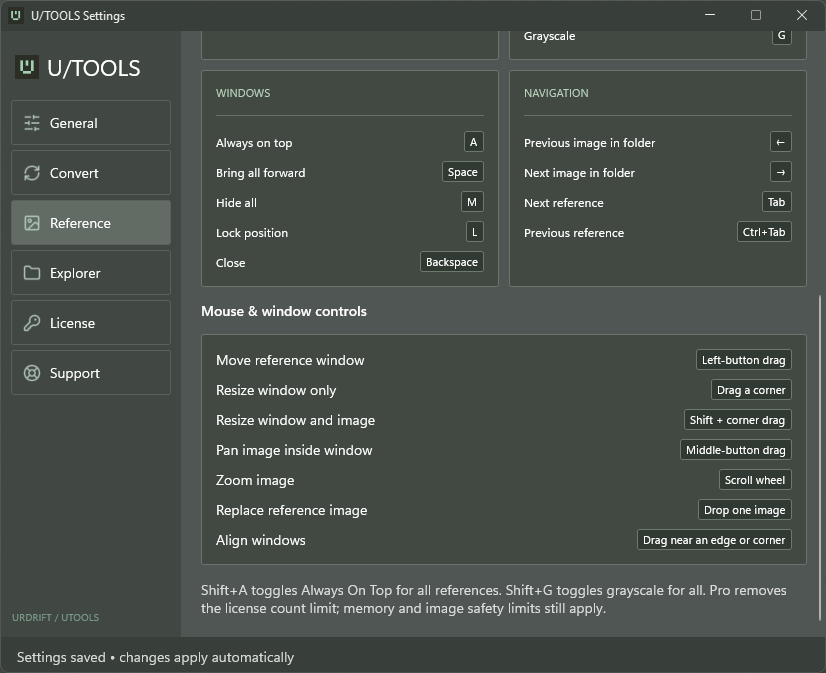
| Grayscale, all references | Shift+G |
| Always on top, active reference | A |
| Always on top, all references | Shift+A |
| Bring references forward | Space |
| Hide all references | M |
| Lock position | L |
| Close current reference | Backspace; Alt+F4 is also available as a normal window action |
| Previous / next supported image in the current source folder | Left / Right, without holding R |
| Next / previous reference window | Tab / Ctrl+Tab |
| Move window | Left-button drag |
| Resize canvas / canvas and image | Corner drag / Shift+corner drag |
| Pan inside the canvas | Middle-button drag |
| Replace one reference image | Drop one supported local image or supported clipboard bitmap onto it |
Folder navigation scans the current directory, not subfolders, sorts supported filenames and does not wrap past the first/last image. Very large directories are bounded to 10,000 examined files.
Known limitations
- The supported format set for references is narrower than the conversion format set.
- Named conversion presets, editable Photoshop reconstruction, animation authoring and renderer-specific TX certification are not provided by this manual’s workflows.
- Ordinary image conversion is bounded to 256 MiB input, 64 megapixels and 32,768 pixels per side. Texture-pipeline input can be up to 1 GiB; dimensions, channels, precision, time and other resource limits still apply. A smaller file can exceed decoded-memory limits.
- Reference previews are reduced for display; Copy Image is a rendered clipboard copy, not an archival source export.
- Boards and sessions link to local source paths. Clipboard imports and reduced reference copies are real local files that may be needed later.
- Pro removes edition count limits, not memory, disk, page, image or request safety limits.
- The Store listing and checkout determine installation/purchase availability. This manuscript does not announce that an application still in certification is publicly available.
Changelog
1.0.2 — update candidate
- Improved Always On Top reliability for reference windows when applications such as WhatsApp and Spotify start or become active. Turning the option off continues to allow normal window overlap.
- Improved handling of Windows reopening a running application and the Launch U/TOOLS at Windows startup preference.
- Added local startup diagnostics. Support reports export recognised startup/restart event categories without raw messages, command lines, image names or paths.
- Clarified that the notification-area icon represents the running app, while the Explorer right-click commands remain installed after Quit. This is expected behavior, comparable to an installed ZIP utility.
- No new conversion formats, licensing plans or in-app update notification were introduced in this update.
1.0.1 — published base-app version
- Store application data moved to the package’s own LocalState directory:
%LOCALAPPDATA%\Packages\Urdrift.UTools_m6965c7ypmb5y\LocalState\URDRIFT. This includes settings, local logs, sessions and cached clipboard images. - User-selected converted outputs, original images and saved Boards remain in their chosen locations. Before uninstalling or resetting the app, back up any cached clipboard images needed by Boards or sessions; package-local data must not be assumed to survive those operations.
- The packaging change did not reset or extend the Pro trial.